Step 1 - Configure search query
Deletion is irreversible. Want to do a test without using live data? Sandbox is installs are free. Or use the following example.
Create a new test user with the name John Doe and email address john.doe@example.com, give the user a tag test_user. Wait a bit for the user to be created (or the user won't be shown in the search). Then use Zendesk search with this query test_user created>10 minutes, and wait until the user shows up.
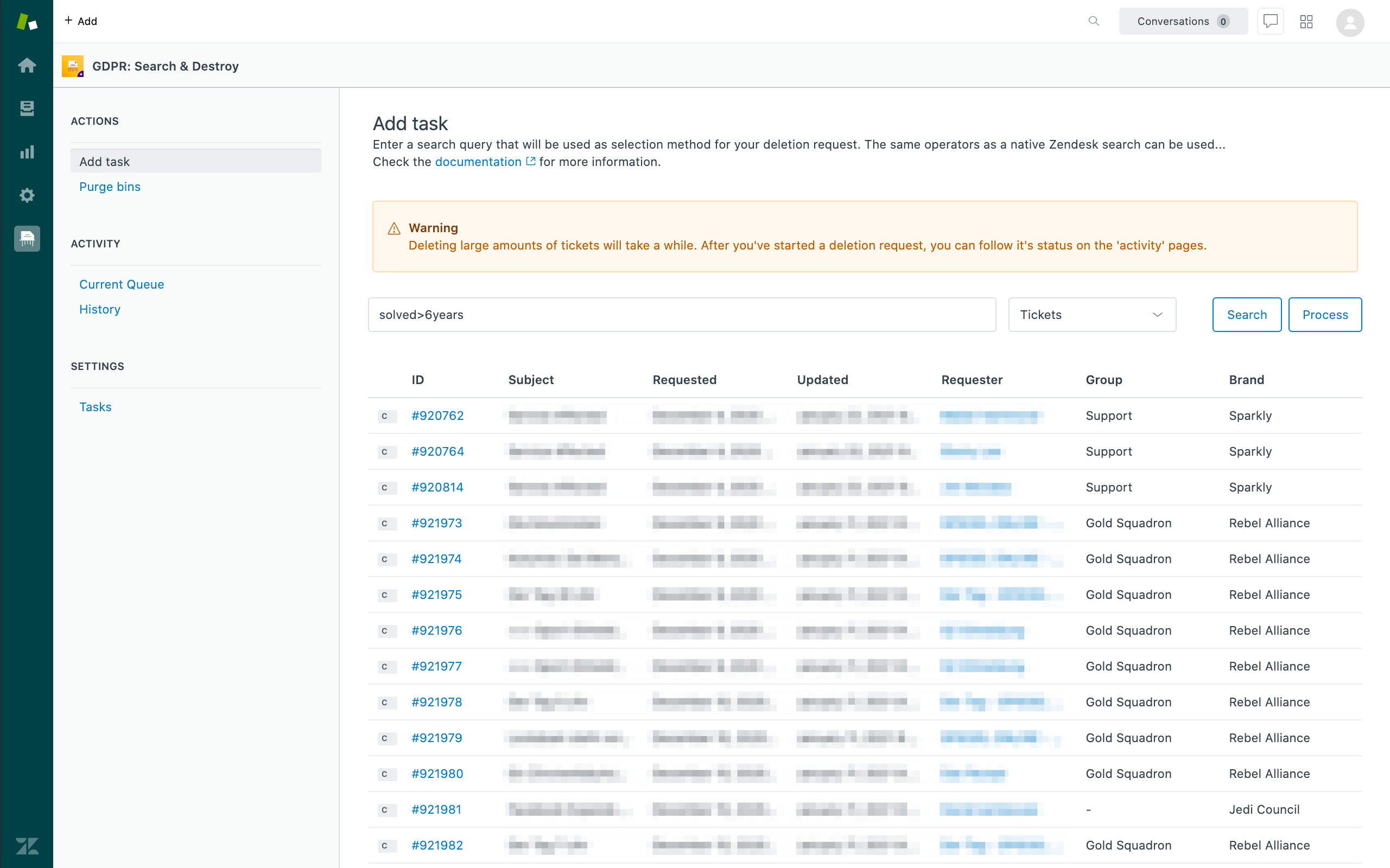
- The goal of this task is to delete all tickets that are solved more than 6 years ago.
- Open GDPR: Search & Destroy by click on the app's icon in the Nav Bar.
- Click on Add task in the navigation.
- Click on input field and type the following
solved<6years(you are able to use all the search features you are used to in Zendesk) - Select Tickets
- Click Search
- A list of tickets will show (if no tickets are found, that means you don't have any, adjust the tickets time in the query)
- Click Process
Step 2 - Configure processing
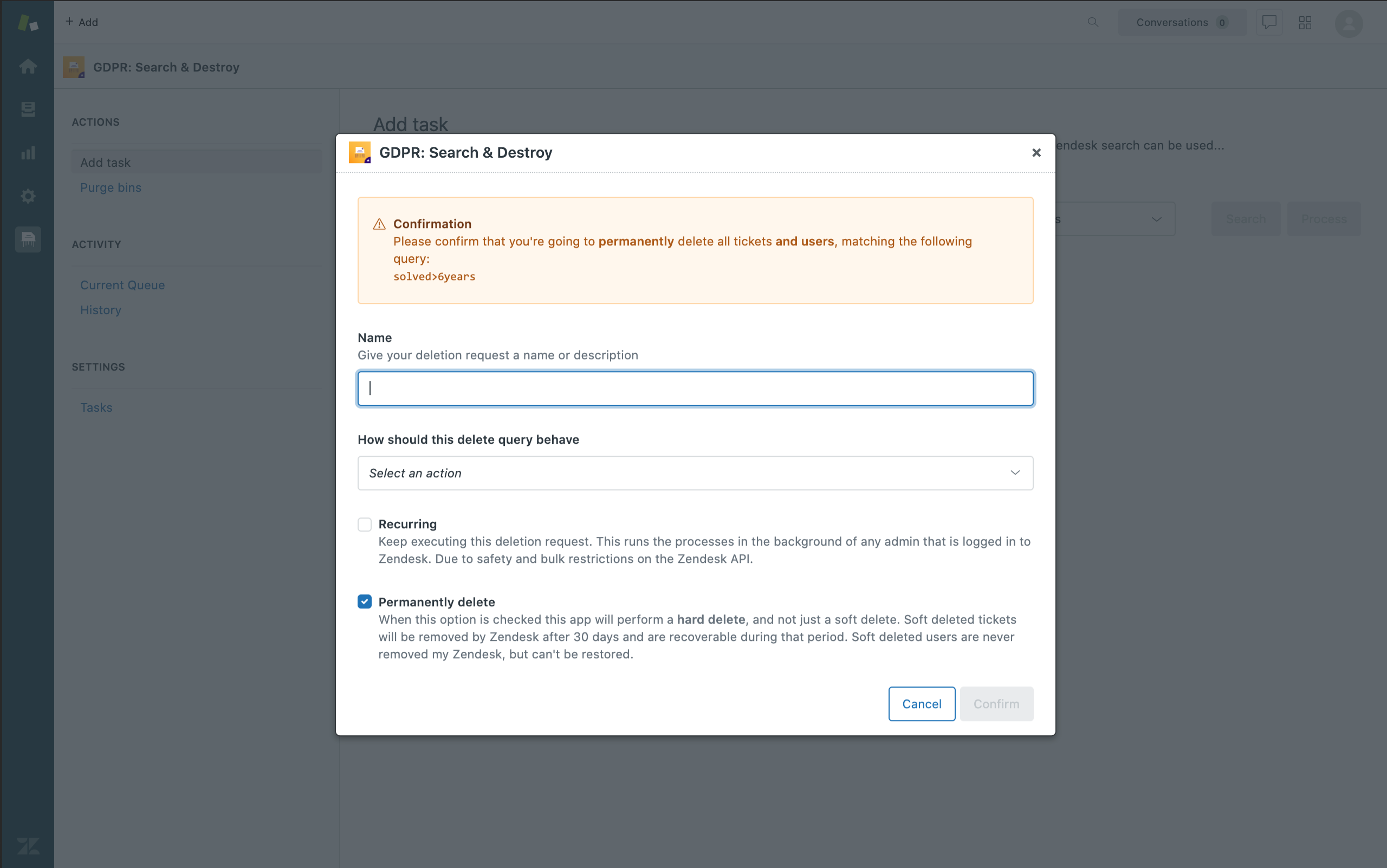
- Type a name for your query, so in the future you know why it was created
- Click on Select an action and select Delete Ticket (take a moment to read all options)
- For this query we just want to do a one-off deletion, so Recurring needs to be deselected
- Select Permanently Delete, this will fully delete the ticket. Once the task has been processed, it won't show in the Delete Tickets View.
Step 3 - See the query in action
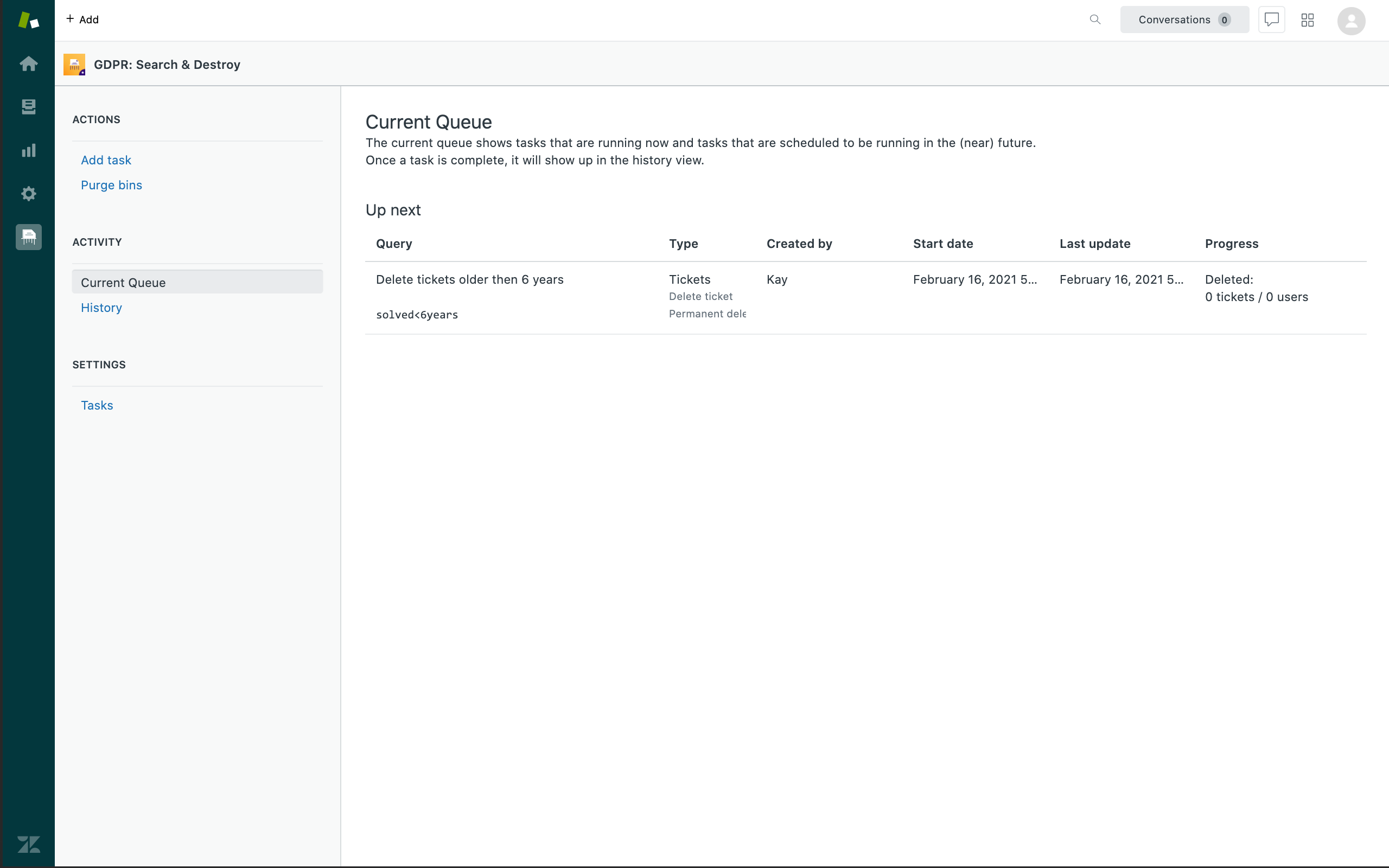
- GDPR: Search & Destroy routes you to the Current Queue page and will show you the query (and the progress there).