Before Shortcuts: Without a direct integration between your system and Zendesk. Getting to the correct information of a customer feels tedious, repetitive, and clouds the precious headspace of your Agent. After Shortcuts: Your agent easily accesses the correct information in your back office system, without any integration. The agent no longer needs to remember the systems and a sense of focus of the conversation sets in.
Getting started
Introduction to the layout of the app
These steps will exactly show you how you can start using the app.
Open the Shortcuts app
By clicking the new icon that pops up after enabling the app on the left side of your Zendesk interface...
Dashboard

The Shortcuts Dashboard serves the following purpose:
- Overview of the Usage
- Number of created Shortcuts
- The number of clicks for all Shortcuts in the past 7 and 30 days.
- Help you to get in touch with a Sparkly Agent for either
- Expert advice
- Billing changes
- Subscription changes
Admin Overview of Shortcuts

The Shortcuts page shows an overview of all existing Shortcuts.
It is possible to manage the Shortcuts by category under:
- Tickets
- Users
- Organizations
From the perspective of the Agent, you can switch between category
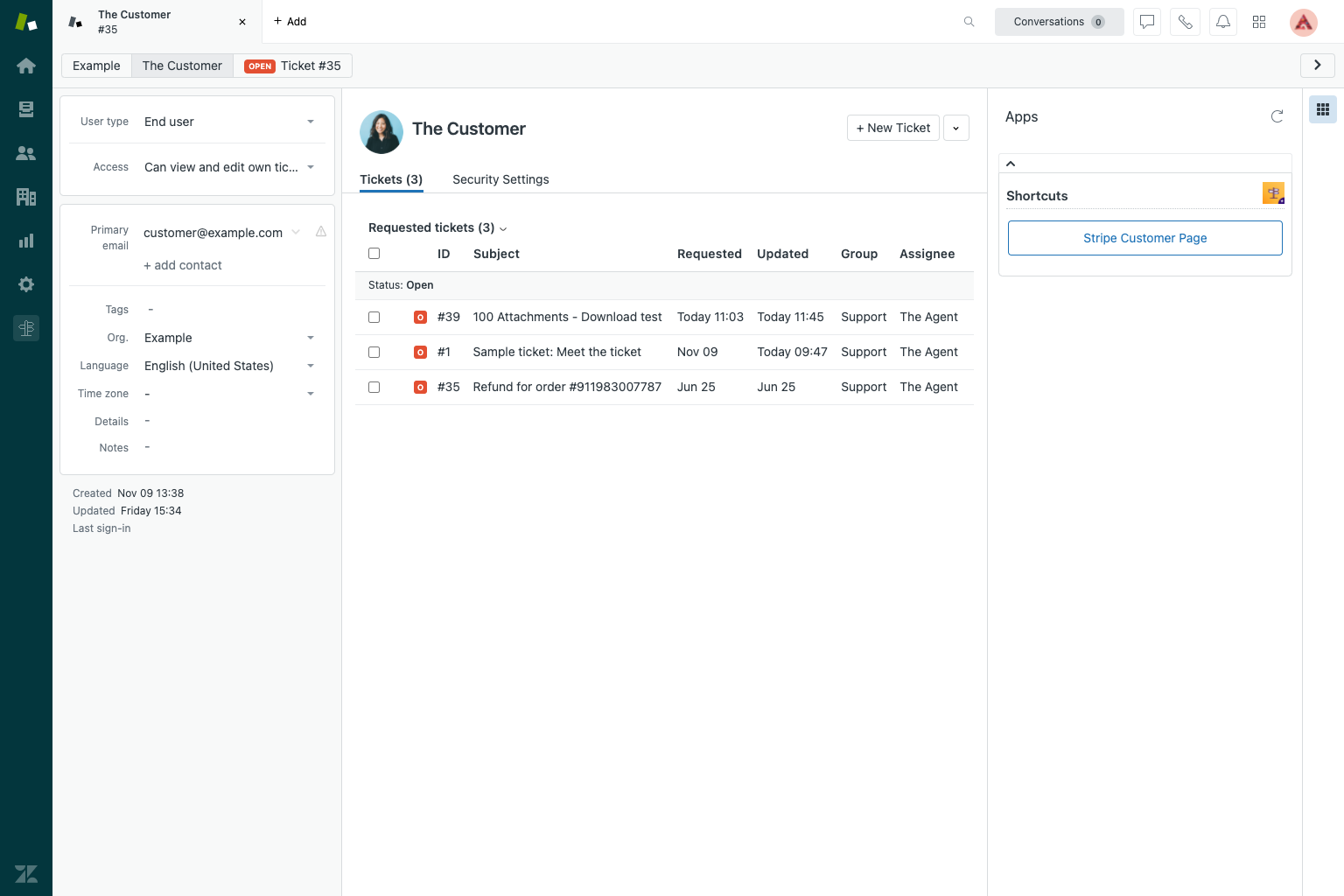
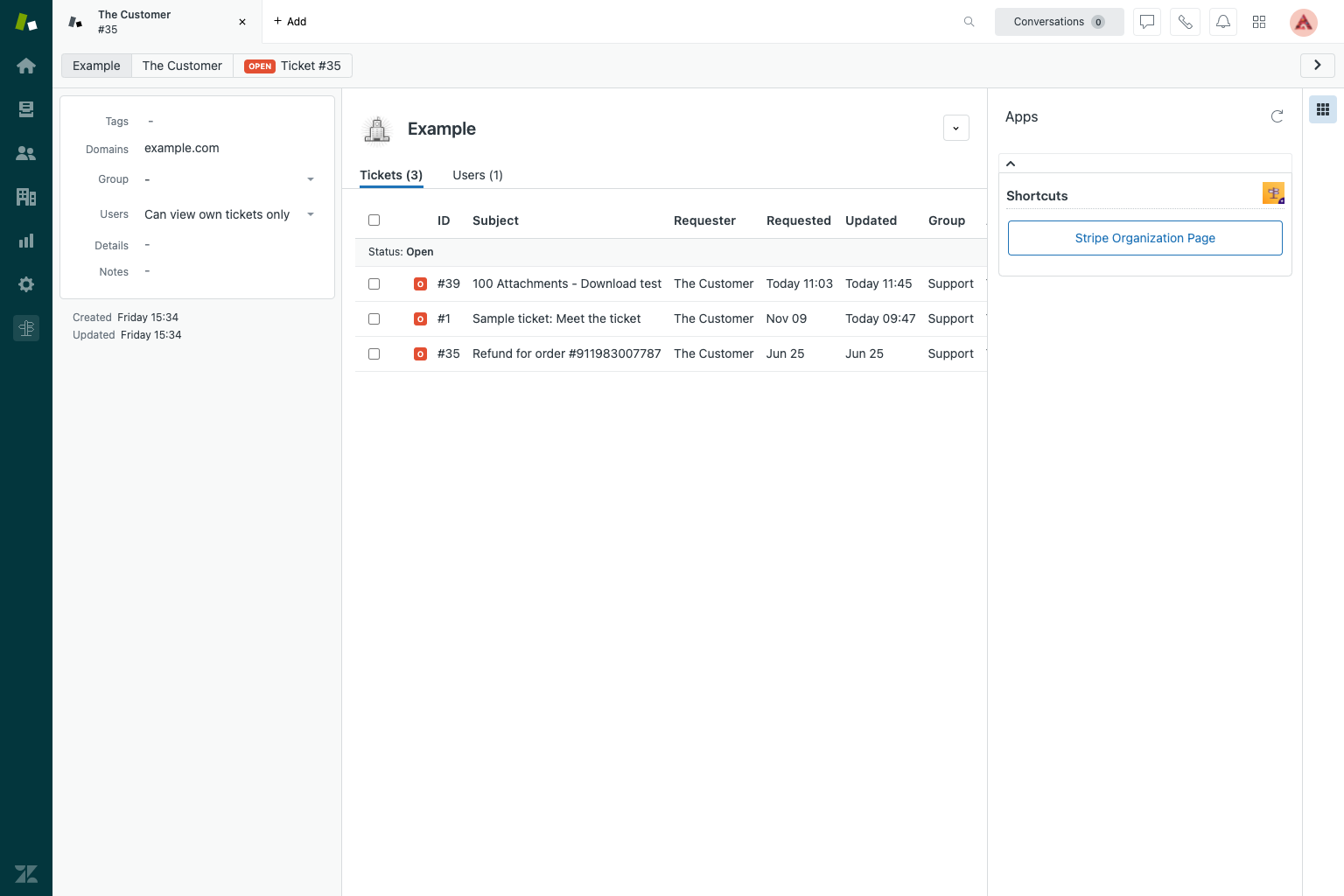
Add a Shortcut
When you click on the add Shortcut button, the configuration screen opens up.
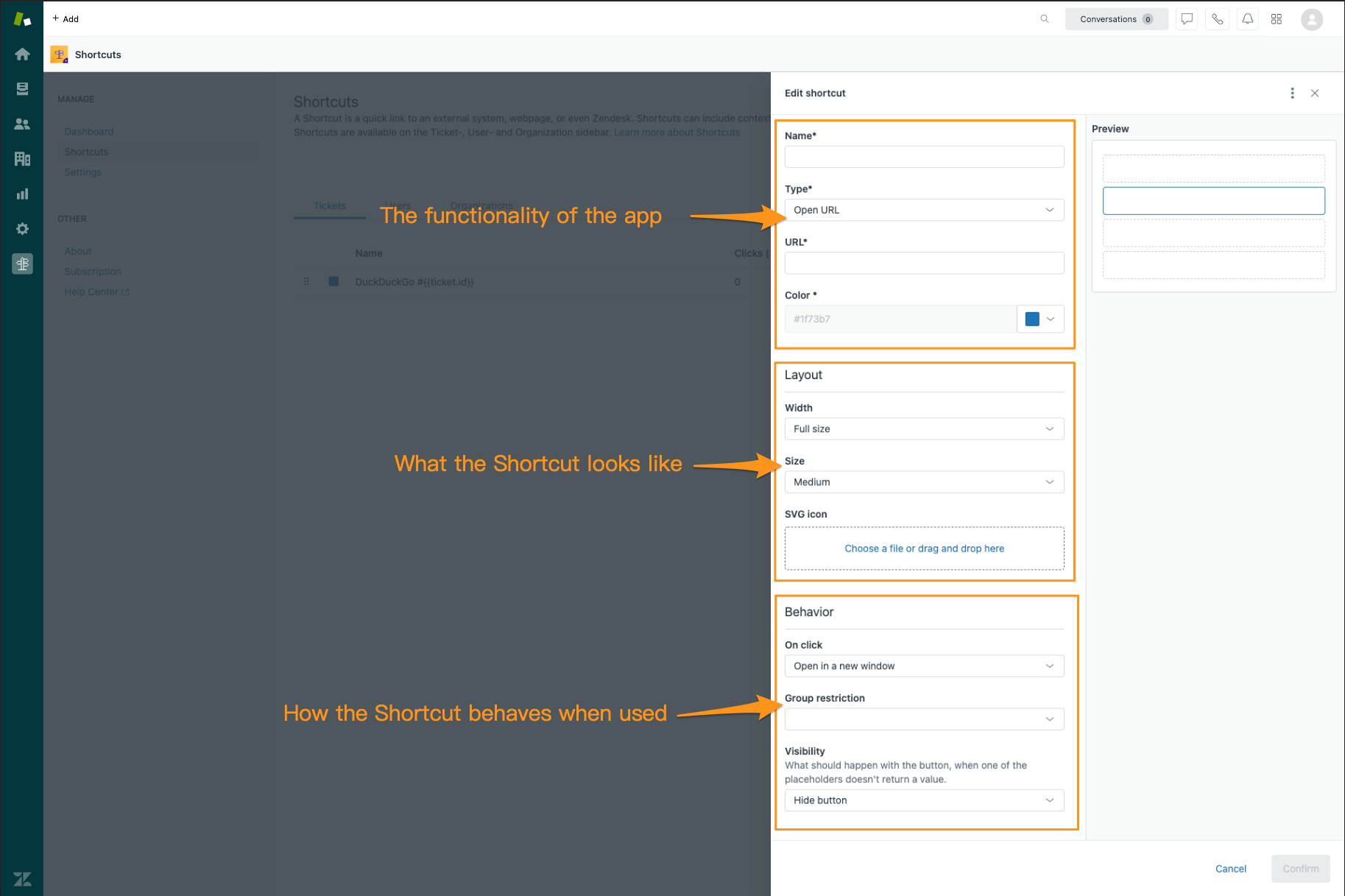
- Functionality
- Name — Will be visible to the agent and looks like this
- URL — insert the link (For an example click here)
- Color of the link that's visible for the agents.
- Change the way the button looks
- Behavior
- Open link in new window or make use of a pop-up
- Set group restriction(s)
- Set button visibility options
Shortcut App Settings
The app also has an additional setting. This setting allows controlling who can create and manage Shortcuts.

How you can use Shortcuts
Keeping the agent focused on the quality of the communication is especially challenging when stuff’s spread out across your website, your Help Center, and external systems, etc. Agents need to remember your organizations' setup. Things get lost, (new) agents don’t know where to look for stuff, and people tend to internalize by creating their own paths to the quickest resolution.
But when it’s all together in Shortcuts, you’ll see how easy agents get to the relevant information, understand what to use and when, and open the system they need, without remembering the systems. All to achieve the ultimate goal and create Headspace in Zendesk.
Shortcuts are designed to make the life of an Agent easier. The Shortcuts app makes it possible to directly access relevant information on the ticket requester by creating a dynamic URL. And can be used for many different use-cases.
Examples
Use cases for Quick links inside Zendesk
Opening an external system
An example could be that a new potential customer contacts you via a form. You have already got the name of the organization and the name of the person. You could for example use this information to create a shortcut that links to the Stripe profile of the ticket requester. This can save time to find background information on the person you are communicating with. Read more about how to open a customer profile
Search and open an E-Commerce platform
Mistakes happen in any business. With an E-Commerce company, an order may go wrong. A customer could reach out to ask if the item they have ordered from your website has already been shipped. If a Shortcut has been created, The Shortcut can immediately access the order shipment information page directly from Zendesk. Learn more about searching and opening your E-commerce platform
Open your back office system
Often Software companies have their back-end systems. This is the place where customer data is stored. When companies decide to create their backend systems, it is often not the core focus of the developer to make sure the back-end has a user-friendly interface for the customer support agent. With the Shortcut app, you can help the Agent to redirect instantly to relevant pages that in some cases would be difficult and time-consuming to find. Read more about opening your back office system
Advanced implementations
Zendesk placeholders
Zendesk Support placeholders are containers for dynamically generated ticket and user data. The format is a data reference contained within double curly brackets. Since you can also access ticket and user data when defining programming logic, it may be helpful to think beyond placeholders and think instead of data objects and their properties that can be used for either purpose. For more info on Zendesk placeholders please click here
If.. then... else
If you are on this page, then you're probably familiar with if-this-then-that or any other if.. then... else.. logic. In Shortcuts you can use this too. Shortcuts use the popular HandlebarsJS to configure more complex URLs and names. We've also added the isEqual comparison, so you can have the Shortcut check against ticket fields (and other placeholders).
You can use any of the available Zendesk Placeholders in the name, URL, and POST Forms fields.
If you would like to see some examples please click here
Regular Expressions (Regex)
A Regular Expression is a sequence of characters that define a search pattern.
Shortcuts use the popular HandlebarsJS to configure more complex URLs. We've also added the regex helper. In the name, URL, and POST Forms fields you can use Regular Expressions. You can use any of the available Zendesk Placeholders in the regex helper.
If you would like to learn more about Regular Expressions and an example of implementation please click here.
Frequently asked questions
Do you need an API integration?
No, API integration is not necessary. Shortcuts advantage is that you do not trigger an event to execute. You are redirected to the page in the browser so you can trigger an event on the actual new page. The big advantage is that you do not send information which helps the overall security.
What's the difference between a bookmark and Shortcuts
Think of it as a bookmark with contextual (specific relevant) information. Where bookmark can adapt based on that information. So the agent has the fastest route (=shortcut) to the specific answer in the specific use case. If you would like to see an example please click here
How is data of the external system secured?
It's secured by the external system's policies itself. No data transfers to Zendesk or Sparkly.
Data doesn't leave your browser. If an agent has access to the external system in the browser, the security remains the same.
For example, an agent clicks a shortcut to Stripe. A new window opens. And the relevant information passes via a URL. Like this: https://stripe.com?q=james@example.com
Which data does Sparkly store?
We never send any of your Customer' data to Sparkly. For this reason, we do not need to store the data. To install the app you are required to have a subscription, therefore we collect the minimum viable information.
How do you activate Zendesk Sunshine and why do you need it?
For the Shortcuts app, you need Zendesk Sunshine. For more information on what Zendesk Sunshine is and how you can activate please read this helpful article.
What if your back office doesn't have an order ID in the URL, how do you link to it?
When there is no orderID in your URL it is not possible to link via the Open URL option to that page in the Shortcuts app. Sometimes, for example, on order search pages, a POST Form does the trick. More info
When you can't seem to create the correct Shortcut, can Sparkly help?
In case you need help, of any kind, you can always ask us directly by creating a ticket via support@sparkly.dev.
Is there a list of Example Placeholders
We have created an overview of example placeholders that are commonly used as Shortcuts. Please click here for the overview