Zendesk is designed to serve as an inbound ticketing service. Creating tickets and getting in touch via outbound isn't always the most seamless experience. With the Proactive Bulk Tickets app, it's easy to use Zendesk for outbound too. In practice, there are many different use-cases and we have outlined a few scenarios in our Help Center. This article outlines an example of how you get in touch with your clients both via email and text message.
It's a fact that if you run a business, you also have to deal with payment issues. Collecting payments often is a time-consuming and atrocious process.
A lot of companies in the online markets use Stripe as their payment service. Within Stripe it's possible to set up a streamlined process for failed payments. Part of the process could look something like this.
- Payment attempt tried and results in failed payment
- Automated event triggers after X day(s) and executes another payment attempt.
- Repeat the above process as many times as you'd like. 4 or 5 attempts are common.
If you managed to set up an efficient process it will already significantly help to retrieve the money that you're owed vs how much money is still out there to be collected.
In practice, there will always be exceptions on why an automated process isn't working. The reasons behind failed charges are endless. An example is that the subscription holder is on maternity leave and therefore unable to take action on the emails that are sent simultaneously with the collection attempts.
The best chance to retrieve what you're owed is to follow up in person. Our customers have shared that the Proactive Bulk Tickets app helps them with retrieving open invoices via sending out text messages in bulk. It's possible to send out a text message if you have saved the contacts' phone numbers somewhere in your database.
If you'd like to apply this method in order to streamline your collection process, please note the following:
You need to have Zendesk Text enabled in order to send Bulk messages in the form of a text message.
- Text messages can be up to the standard 160 character limitation in length.
If you type a longer message, it will be split into multiple messages, every 153 characters in length. For example, if you type a message of 161 characters, it will be split into two messages; one of 153 characters, and one of 8 characters.
- You can send up to 250 simultaneous text messages from the same number. If you exceed this, messages will no longer be sent, and you'll see a warning (in the ticket) that the message was rejected by the provider.
- The text does not support short codes or alphanumeric sender ID
- You can receive inbound MMS messages on US local numbers, but Text does not currently support outbound MMS messages.
To learn about the supported countries, and prices for Text, see Zendesk Text number availability and pricing.
How to execute a Proactive Text Message Campaign?
- Set-up Zendesk text.
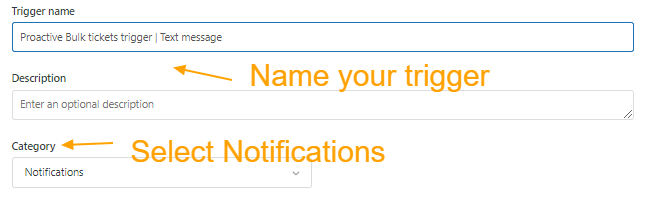
- Align your trigger under https://your-subdomain.zendesk.com/agent/admin/triggers/
- Name your trigger
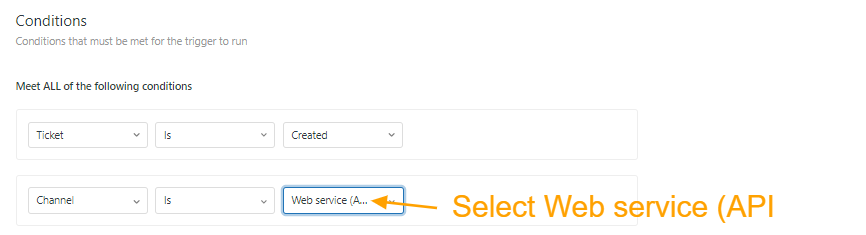
- Add the conditions
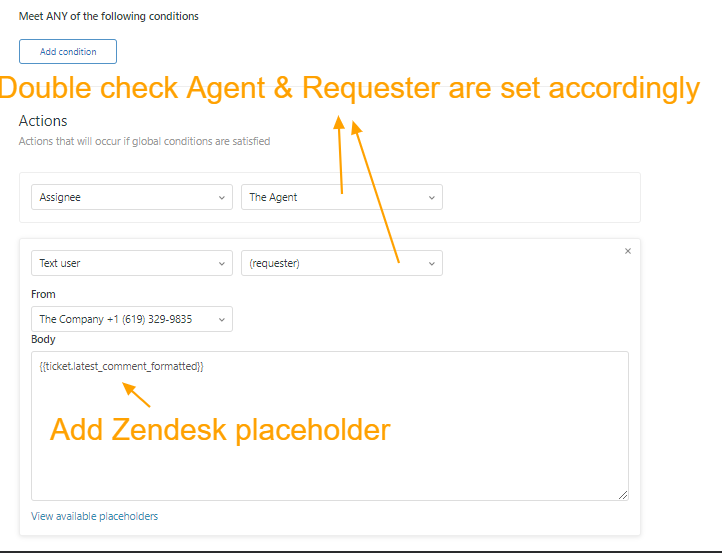
- Add action
- Name your trigger
- Once the trigger is set - the process of sending a Campaign is the same as sending a normal campaign.
- NOTES
- Add "Phone" in the header of your CSV File . This will ensure the Mapping in Zendesk will automatically be synced.